
Add Ancillaries
Modified on: 2026-10-13 10:45
This section outlines the high-level workflow for adding ancillary services to an existing confirmed booking. This process allows you to purchase additional services for an existing order after the initial ticket has been issued.
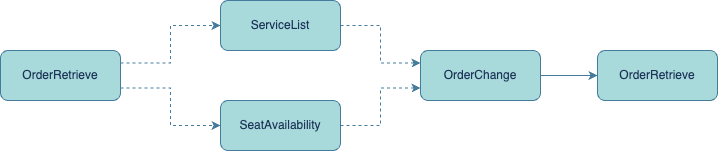
Step 1: Retrieve Order Details (orderRetrieve)
- First, fetch the latest details of the order to confirm its current status and eligibility for adding ancillary services.
Step 2: Check Available Services
- Query for available ancillary services using two dedicated endpoints:
- seatAvailability: Retrieve available seat options with precise locations, features, and pricing for the specific flights in the booking.
- serviceList: Query for other available ancillary services like baggage allowances, meals, sports equipment, or special assistance.
Step 3: Submit Ancillary Purchase Request (orderChange)
- Initiate the purchase by submitting the selected service(s) along with the necessary payment information for any additional fees.
Step 4: Check Purchase Status
- The result of the ancillary purchase is delivered asynchronously and can be monitored through:
- Polling: Calling the orderRetrieve operation; the response will include the newly added services in the order details once successfully processed.
- Webhook Notification: Receiving a push notification with the final outcome of the ancillary purchase request.
The availability and pricing of ancillary services are subject to change based on real-time inventory and airline policies. Successful addition is contingent upon payment authorization and confirmation from the supplier's system.
Did you find it helpful? Yes No
Send feedbackSorry we couldn't be helpful. Help us improve this article with your feedback.